![SC logo dark stacked-1.png]](https://knowledge.spartacommodities.com/hs-fs/hubfs/SC%20logo%20dark%20stacked-1.png?height=40&name=SC%20logo%20dark%20stacked-1.png)
Table of contents
1. Legends & Iconography
- Cell states
- Portfolios & Sharing
2. Key Concepts
- Curves
- Portfolios
- Permissions & Visibility
- Audit & History
3. Getting Started
- A. Creating a shared desk portfolio with custom curves
- Step 1 - Creating a custom portfolio
- Step 2 - Customise portfolio curves
- Step 3 - Share a portfolio
- B. Adding a shared portfolio to your Curves table
4. How do I…?
- Make a copy or rename a curve
- Share a custom curve individually
- Duplicate a view-only portfolio or curve
- Fast edits with your keyboard
5. Troubleshooting
6. Checklists
1. Legends & Iconography
Before you start, here’s a quick reference for the icons and markers you’ll see throughout Sparta.
Cell states
Sparta uses clear icons and markers to show edits, ownership, and sharing at a glance. This section explains what each icon means, so you always know who changed what, when, and how.
|
Icon |
Meaning |
What you’ll see when you hover over it |
|---|---|---|
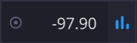 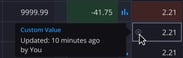 |
Your edit |
Shows your name + time since the change. |
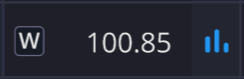 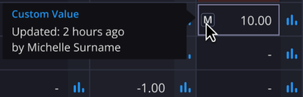 |
Colleague edit |
Shows their full name + time of update. |
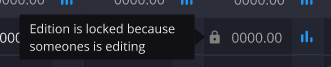 |
Locked |
Another user is editing — cell unavailable. |
 |
Reset |
Restores original Sparta or parent value. |
 |
Outlier alert |
Blinks twice if input is 10× bigger/smalle |
Portfolios & Sharing
|
Tab / Badge |
Type |
Description |
|---|---|---|

|
Sparta Portfolio |
Default, pre-configured with curves by Sparta. Labelled with the Sparta logo icon. |

|
Shared Portfolio |
Created by someone in your company, shared with you. Labelled with a group icon. |

|
Custom Portfolio |
Configured with curves by you. Labelled with a user icon. |

2. Key Concepts
Curves
A curve is a time series - a series of price values across different time periods (tenors), such as months, quarters, or calendar years. Curves are the foundation of portfolios and can represent anything from crude grades to product cracks or freight rates.
|
Type |
Description |
When to use |
|---|---|---|
|
Sparta Curves |
Market curves provided by Sparta or our third party data providers (e.g., broker or exchange feeds). |
Use as your baseline market reference. |
|
Custom Curves |
Curves created or modified by your team, via overrides, formulas, or copied curves. |
Use when applying your proprietary marks, forecasts, or formulas. |
|
Shared Curves |
Custom curves created by someone else and shared with you through permissions. |
Use when collaborating across desks or aligning inputs for ARBs/blends. |
Curves are the building blocks of pricing in Sparta. Default Sparta curves give you the market, while custom curves let your desk apply its view of the market and share it securely.
Portfolios
A portfolio is a collection of curves that you work with daily, your workspace for monitoring, editing, and sharing market data. Portfolios keep related curves together so you can manage strategies, exposures, or regions in one place.
|
Type |
Description |
When to use |
|---|---|---|
|
Sparta Default |
Portfolios curated by Sparta, pre-configured with key curves, organised per market. |
Use as your starting point, or when you need a clean reference set of curves. |
|
Custom |
Portfolios you or your team create, containing any mix of Sparta and custom curves. |
Use when modelling desk-specific strategies, adding proprietary marks, or organising your own workflows. |
|
Shared |
Portfolios created by someone else and shared with you via permissions. |
Use to collaborate across desks, regions, or functions (e.g., traders, analysts or risk). |
Portfolios keep your daily view organised, while permissions ensure the right people see and edit the right data.
Permissions & Visibility
Permissions in Sparta work at two levels: curves and portfolios.
-
Curve permissions control access to the data points inside a curve. They decide whether someone can simply view the curve, make edits to tenor values, or manage how that curve is shared with others.
-
Portfolio permissions control the structure of a portfolio itself, who can add or remove curves, and who can duplicate or share the entire portfolio with other users.
Visibility defines who can see a portfolio or curve:
-
Restricted → Only the specific users or groups you add will have access.
-
Open → Everyone in the company can see the portfolio or curve.
|
Level |
Curves (data points) |
Portfolios (list of data points) |
Examples of when it should be used |
|---|---|---|---|
|
Restricted |
Only specific users/groups can access the curve. |
Only specific users/groups can access the portfolio. |
Sensitive marks (e.g., OTC broker quotes) or team-only views. |
|
Open |
All users in the company can see the curve. |
All users in the company can see the portfolio. |
Shared benchmarks, endorsed desk-wide or company-wide inputs. |
-
View → See the data but make no changes.
-
Edit → Update values in curves or rearrange items in portfolios.
-
Manage → Full rights, including sharing and assigning permissions to others.
|
Permission Level |
What it means for curves |
What it means for portfolios |
|---|---|---|
|
View |
See curve values but cannot edit. |
See portfolio contents but cannot change them. |
|
Edit |
Update tenor values or apply overrides. |
Add/remove curves within the portfolio. |
|
Manage |
Full rights: edit, share, set permissions for others. |
Full rights: edit, share, and assign permissions. |
Audit & History
Every change in Sparta is logged automatically, giving traders confidence, and managers defensibility.
-
Every edit is tracked → Who made the change, what was changed, and when it happened.
-
Tooltips for clarity → Hover over a marker (circle or square) to see the editor’s name and time of update.
-
Reset anytime → Instantly restore any value to the Sparta-provided original.
Why this matters
For traders → Removes disputes, no more “whose number is right?”
For managers & risk → Transparent audit trail ensures compliance and data integrity.
For desks → Easier reconciliation and trust in shared views.
3. Getting Started
A. Creating a shared desk portfolio with custom curves
In this example, we will create a shared curves portfolio with our own custom EBOB curve in four easy steps.
Step 1 - Creating a custom portfolio
The quickest way to build our custom desk shared portfolio is by modifying an existing Sparta default portfolio.
Let’s start by opening one of the Sparta default portfolios (labelled with the Sparta logo  ).
).
-
Navigate to Curves → Table. Select the desired portfolio.
In the example below, we have selected the default Sparta Gasoline portfolio.
.png?width=670&height=394&name=Copy%20of%20website%20-%20image%20placeholder%20(1920%20x%201130%20px).png)
By default the 'Edit Curves' toggle is off.
%20(1).png?width=670&height=394&name=Copy%20of%20website%20-%20image%20placeholder%20(1920%20x%201130%20px)%20(1).png)
When you click the toggle, an 'Edit Portfolio' pop-up will appear. Default Sparta portfolios are view-only and cannot be edited directly. To begin making changes, the next step is to create your own copy of the default Sparta portfolio. Click on ‘Make a Copy’.
%20(2).png?width=670&height=394&name=Copy%20of%20website%20-%20image%20placeholder%20(1920%20x%201130%20px)%20(2).png)
You are now working in your own copy of Sparta’s default gasoline portfolio. This is easy to spot: the Sparta logo has switched to a single-person icon .png?width=15&height=15&name=Untitled%20design%20-%202025-09-17T124330.591%20(1).png) , indicating it’s your own personal (restricted) version. You are also in edit mode, with the “Edit Curves” toggle activated, as shown below.
, indicating it’s your own personal (restricted) version. You are also in edit mode, with the “Edit Curves” toggle activated, as shown below.
%20(4).png?width=670&height=394&name=Copy%20of%20website%20-%20image%20placeholder%20(1920%20x%201130%20px)%20(4).png)
Step 2 - Customise portfolio curves
We are now ready to tailor our view of the market by adding/removing curves from the portfolio, and by overriding values of curves.
Adding/Removing curves from a portfolio
Let’s first add any missing curves into this portfolio and remove any unnecessary ones.
-
Select ‘+ Add Curve’. The ‘Add Product’ dialog will pop up.
-
Select/unselect the curves you would like to view in this portfolio. Use the ‘custom’ filter to view customised curves. Custom curves will be followed an icon showing the permission level.
-
Select ‘save’.
%20(5).png?width=670&height=394&name=Copy%20of%20website%20-%20image%20placeholder%20(1920%20x%201130%20px)%20(5).png)
Click the number in the cell
In order to override curve values, let’s confirm two things:
You are in your custom portfolio (look for the single-person icon .png?width=19&height=19&name=Untitled%20design%20-%202025-09-17T124330.591%20(1).png) instead of the Sparta logo).
instead of the Sparta logo).
You are in edit mode (the “Edit Curves” toggle should be active):
%20(7).png?width=670&height=394&name=Copy%20of%20website%20-%20image%20placeholder%20(1920%20x%201130%20px)%20(7).png)
Override a Sparta curve
To create your custom curve, simply click on any value in the table. The cell will switch to editable mode, allowing you to type in your own value.
In this example, we will add a custom value of '123.45' to the Oct ’25 tenor.
%20(8).png?width=670&height=394&name=Copy%20of%20website%20-%20image%20placeholder%20(1920%20x%201130%20px)%20(8).png)
Once you enter your value, the default Sparta EBOB curve will automatically convert into your custom curve. You can easily identify it by the lighter-coloured header and the single-person icon displayed at the top of the curve.
%20(9).png?width=670&height=394&name=Copy%20of%20website%20-%20image%20placeholder%20(1920%20x%201130%20px)%20(9).png)
Repeat the process of overriding Sparta curves to create all the custom curves in your portfolio. (You will configure sharing permissions on these curves and on the portfolio in the next step).
Tip: By hovering over the custom value icon, you can quickly see how long ago a value was changed and by who.
%20(10).png?width=670&height=394&name=Copy%20of%20website%20-%20image%20placeholder%20(1920%20x%201130%20px)%20(10).png)
Tip: Spot assessment & ARB curves cells are not editable.
%20(11).png?width=670&height=394&name=Copy%20of%20website%20-%20image%20placeholder%20(1920%20x%201130%20px)%20(11).png)
Step 3 - Share a portfolio
Let’s have a look at our custom gasoline portfolio.
Go to the Portfolio tab and click the three dots (⋮) → Manage Permissions.
%20(16).png?width=670&height=394&name=Copy%20of%20website%20-%20image%20placeholder%20(1920%20x%201130%20px)%20(16).png)
The ‘Manage Permissions’ modal will now open, allowing you to set visibility and control who can view, edit, or manage the portfolio. The difference between permissions levels will be explained next.
%20(17).png?width=670&height=394&name=Copy%20of%20website%20-%20image%20placeholder%20(1920%20x%201130%20px)%20(17).png)
First, choose a visibility level for your portfolio:
Restricted → Only the specific users or groups you add will have access.
Open → The entire company will have access. You will need to set a minimum permission level for open portfolios (View, Edit, or Manage).
For this example, we will keep the permissions level to the default value ‘Restricted’.
%20(18).png?width=670&height=394&name=Copy%20of%20website%20-%20image%20placeholder%20(1920%20x%201130%20px)%20(18).png)
Next, add specific users or groups to the appropriate permission lists:
-
View → Can see the portfolio but not make changes (for example, add/remove curves, or rename the portfolio).
-
Edit → Can see and edit curve values within the portfolio and rename the portfolio.
-
Manage → Can see, edit and manage curve sharing and permissions.
In the example below, we have given our colleague ‘Edit’ permissions, but do not want them to be able to ‘Manage’ the portfolio. Our colleague will now be able to see and edit the portfolio.
Click ‘Save’
%20(19).png?width=670&height=394&name=Copy%20of%20website%20-%20image%20placeholder%20(1920%20x%201130%20px)%20(19).png)
You have now successfully shared your gasoline portfolio with your colleague.
Shared portfolios are easy to spot; they’re marked with the shared portfolio .png?width=17&height=17&name=Untitled%20design%20-%202025-09-22T123951.739%20(1).png) icon at the top.
icon at the top.
%20(20).png?width=670&height=394&name=Copy%20of%20website%20-%20image%20placeholder%20(1920%20x%201130%20px)%20(20).png)
Permissions can be adjusted at any time in just a few clicks through the Manage Permissions menu.
B. Adding a shared portfolio to your Curves table
To add a shared portfolio:
-
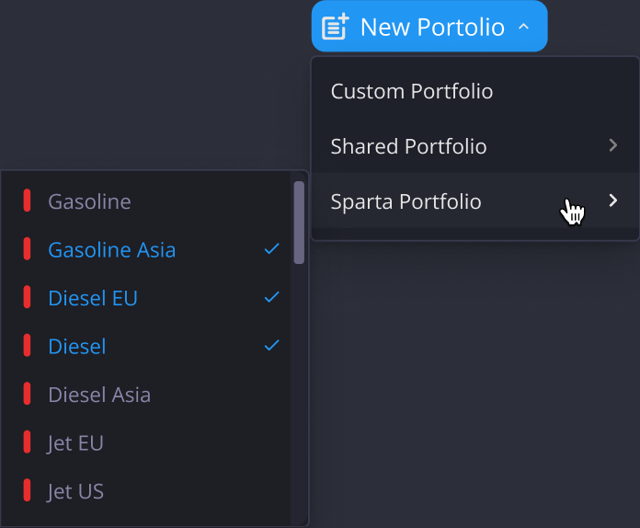
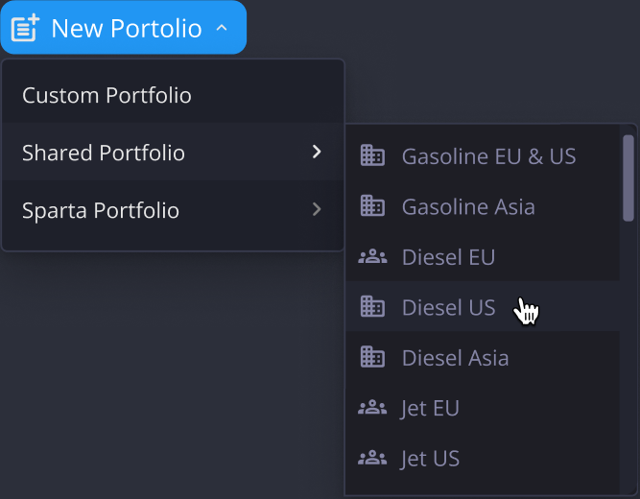
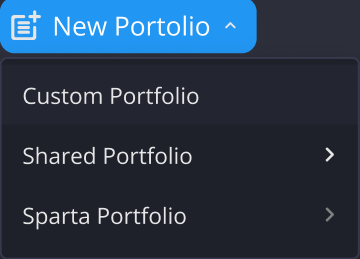
Select New Portfolio → Shared Portfolio.
-
Select the portfolio you would like to add.
The new shared portfolio now appears in your table view. You can easily identify it by the company or shared portfolio .png?width=14&height=14&name=Untitled%20design%20-%202025-09-22T120803.761%20(1).png)
.png?width=16&height=16&name=Untitled%20design%20-%202025-09-22T123951.739%20(1).png) icons displayed at the top.
icons displayed at the top.
%20(15).png?width=670&height=394&name=Copy%20of%20website%20-%20image%20placeholder%20(1920%20x%201130%20px)%20(15).png)
In the example below, selecting ‘Gasoline Custom’ will add the ‘Gasoline Custom’ shared portfolio to our table view.
%20(14).png?width=670&height=394&name=Copy%20of%20website%20-%20image%20placeholder%20(1920%20x%201130%20px)%20(14).png)
If you have multiple portfolios, use the navigation arrows .png?width=21&height=12&name=Untitled%20design%20-%202025-09-22T115358.674%20(1).png) in the top-right corner to move between them. Any new portfolio you create will automatically appear on the end of the portfolio list at the far right end.
in the top-right corner to move between them. Any new portfolio you create will automatically appear on the end of the portfolio list at the far right end.
You can also click and drag portfolios to reorder them, placing them wherever works best for your workflow.
4. How Do I…?
Make a copy or rename a curve
Navigate back to your EBOB swap curve in the portfolio. In the top-right corner of the curve, click on the three vertical dots (⋮) to open the options menu.
%20(21).png?width=670&height=394&name=Copy%20of%20website%20-%20image%20placeholder%20(1920%20x%201130%20px)%20(21).png)
In the options menu, select ‘Make a Copy’
%20(22).png?width=670&height=394&name=Copy%20of%20website%20-%20image%20placeholder%20(1920%20x%201130%20px)%20(22).png)
%20(23).png?width=670&height=394&name=Copy%20of%20website%20-%20image%20placeholder%20(1920%20x%201130%20px)%20(23).png)
Your custom EBOB curve now appears on the far right of the table. You can easily identify it by the lighter-coloured header and the single-person icon at the top of the curve.
%20(24).png?width=670&height=394&name=Copy%20of%20website%20-%20image%20placeholder%20(1920%20x%201130%20px)%20(24).png)
You can reorder the columns at any time. Simply drag your custom curve and drop it next to the original EBOB swap curve to keep them side by side for easy comparison.
%20(26).png?width=670&height=394&name=Copy%20of%20website%20-%20image%20placeholder%20(1920%20x%201130%20px)%20(26).png)
Share a custom curve individually
In this example, let’s have a look at our custom EBOB curve.
Go to the curve header and click the three dots (⋮) → Manage Permissions.
%20(27).png?width=670&height=394&name=Copy%20of%20website%20-%20image%20placeholder%20(1920%20x%201130%20px)%20(27).png)
Set visibility and access for your curve:
Restricted → Only named users/groups you add.
Open → Available company-wide.
Permission levels:
View → See the curve but cannot change it.
Edit → Update curve values.
Manage → View, edit and manage curve sharing or permissions.
In this example, our colleague has view-only access; they can see the curve but not edit or manage it.
Click Save → the curve now appears in the catalogues of authorised users.
%20(28).png?width=670&height=394&name=Copy%20of%20website%20-%20image%20placeholder%20(1920%20x%201130%20px)%20(28).png)
You have now successfully shared your EBOB custom curve with your colleague.
Shared custom curves are easy to spot; they’re marked with the shared portfolio icon at the top.
%20(29).png?width=670&height=394&name=Copy%20of%20website%20-%20image%20placeholder%20(1920%20x%201130%20px)%20(29).png)
Permissions can be adjusted at any time in just a few clicks through the Manage Permissions menu.
Duplicate a view-only portfolio or curve
Go to the Portfolio tab (or curve header) and click (⋮)→ Make a Copy.
For this example, we’ll start by duplicating the entire portfolio “Gasoline Custom”, which was shared with us by a colleague with view-only permissions.
%20(31).png?width=670&height=394&name=Copy%20of%20website%20-%20image%20placeholder%20(1920%20x%201130%20px)%20(31).png)
The copied portfolio will appear next to the original view-only portfolio, with the same name by default. You can easily identify it by the custom portfolio single-person icon .png?width=13&height=13&name=Untitled%20design%20-%202025-09-17T124330.591%20(1).png) .
.
From here, you can rename your new custom portfolio.
%20(32).png?width=670&height=394&name=Copy%20of%20website%20-%20image%20placeholder%20(1920%20x%201130%20px)%20(32).png)
All custom portfolios are created with full permissions - View, Edit, and Manage, giving you complete control.
%20(33).png?width=670&height=394&name=Copy%20of%20website%20-%20image%20placeholder%20(1920%20x%201130%20px)%20(33).png)
Fast edits with your keyboard
-
Arrows → move between cells.
%20(2).gif?width=670&height=394&name=Copy%20of%20website%20-%20image%20placeholder%20(1920%20x%201130%20px)%20(2).gif)
-
Tab → move right.
%20(1).gif?width=670&height=394&name=Copy%20of%20website%20-%20image%20placeholder%20(1920%20x%201130%20px)%20(1).gif)
-
Enter → save + move down.
%20(3).gif?width=670&height=394&name=Copy%20of%20website%20-%20image%20placeholder%20(1920%20x%201130%20px)%20(3).gif)
5. Troubleshooting
-
Lock icon won’t clear → Another user is still editing this curve. Try again later.
-
Can’t edit in shared portfolio → You only have View permissions. Use Duplicate to create your own editable copy or reach out to the owner of the portfolio or curve.
-
Save failed → Hover over the warning icon to see the issue, then re-enter your value and try again.
6. Checklists
Before Sharing a Portfolio
-
Name clearly → Include desk, region, or strategy for easy recognition.
-
Check curve markers → Sparta vs. Custom curves are correctly identified.
-
Set visibility → Choose Restricted (specific users) or Open (company-wide).
-
Assign permissions → Confirm the right View / Edit / Manage access levels.
-
Review sensitive inputs → Share proprietary data only with the intended audience.
Before Sharing a Curve
-
Name is tidy & unique → Easy for colleagues to identify in catalogues.
-
Parent curve reference correct → Ensures charting defaults and ARB mapping work properly.
-
Permissions aligned → Choose the right View / Edit / Manage access for your audience.
-
Team notified → Let colleagues know if this curve replaces or updates older marks.
Still have questions? We’re here to help! You can reach us at any time through the support chat on the platform or by emailing success@spartacommodities.com.